
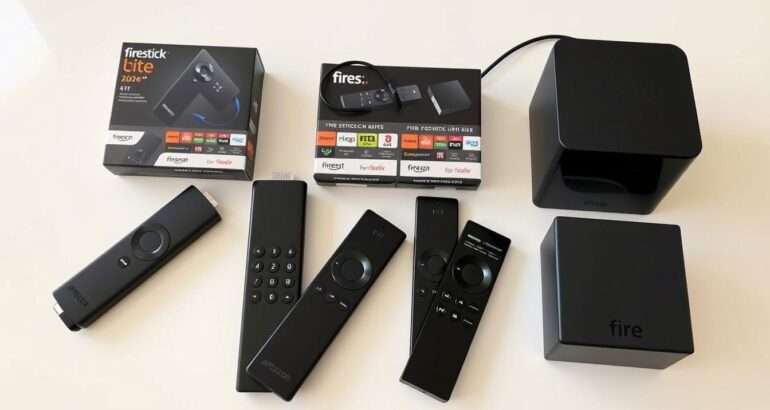
How to Install TiviMate Player on FireStick 2026
A step-by-step walkthrough to install TiviMate Player on any FireStick and connect it to your OBO TV subscription in minutes.
Looking to enhance your streaming experience on FireStick in 2026? TiviMate Player remains one of the most powerful IPTV players available, offering a seamless way to access OBO TV and other IPTV services. This comprehensive guide walks you through the entire process of installing TiviMate Player on your FireStick device, configuring it properly, and integrating it with OBO TV for the ultimate streaming experience. Whether you’re a first-time user or looking to update your setup, this step-by-step tutorial makes the installation process straightforward and hassle-free.
Prerequisites for Installing TiviMate on FireStick
Before we begin the installation process, make sure you have everything needed for a smooth setup experience:
Stay Updated with FireStick Tips
Subscribe to our newsletter for the latest FireStick tutorials, app recommendations, and streaming tips delivered straight to your inbox.
Enable Apps from Unknown Sources on FireStick
TiviMate Player isn’t available in the Amazon App Store, so we’ll need to enable installation from unknown sources. This is a necessary step for sideloading third-party applications onto your FireStick device.
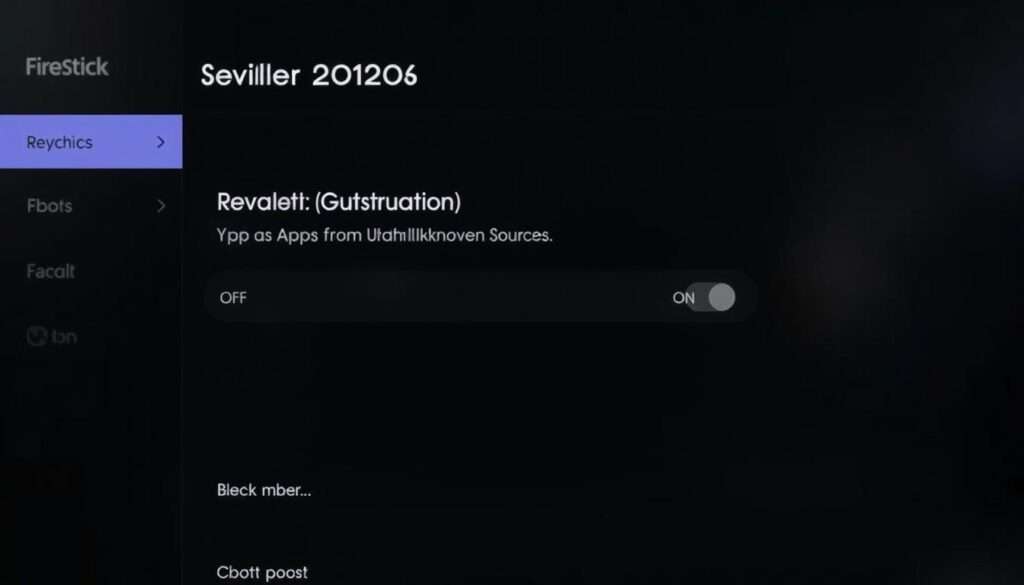
Note for Newer FireStick Models: If you don’t see Developer Options, go to Settings > My Fire TV > About, then click on Fire TV Stick seven times until you see the “You are now a developer” message.
Installing and Setting Up the Downloader App
The Downloader app is essential for sideloading TiviMate onto your FireStick. This versatile tool allows you to download APK files directly to your device.
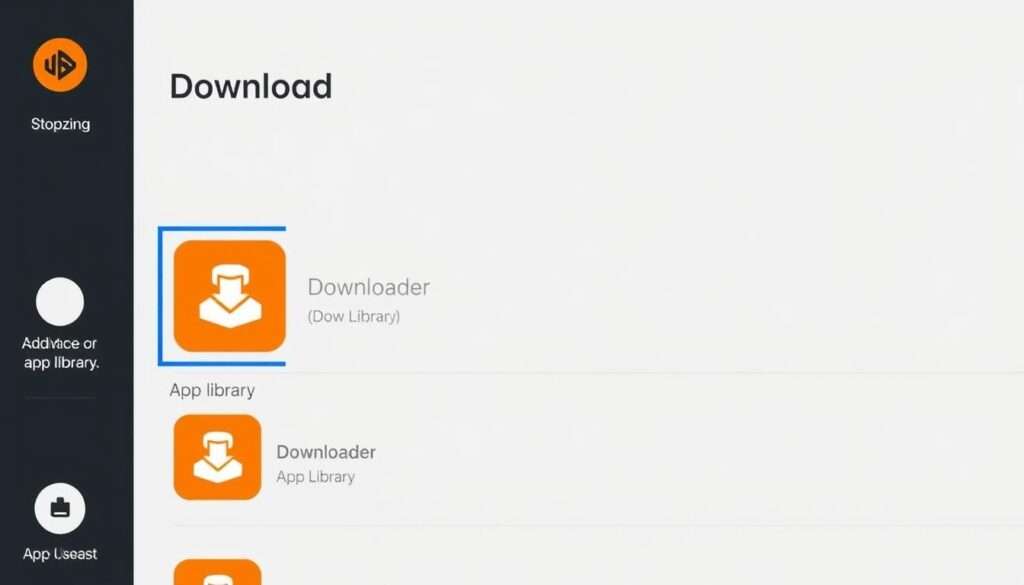
Important: Make sure to download the official Downloader app by AFTVnews. It has an orange icon and is free to download from the Amazon App Store.
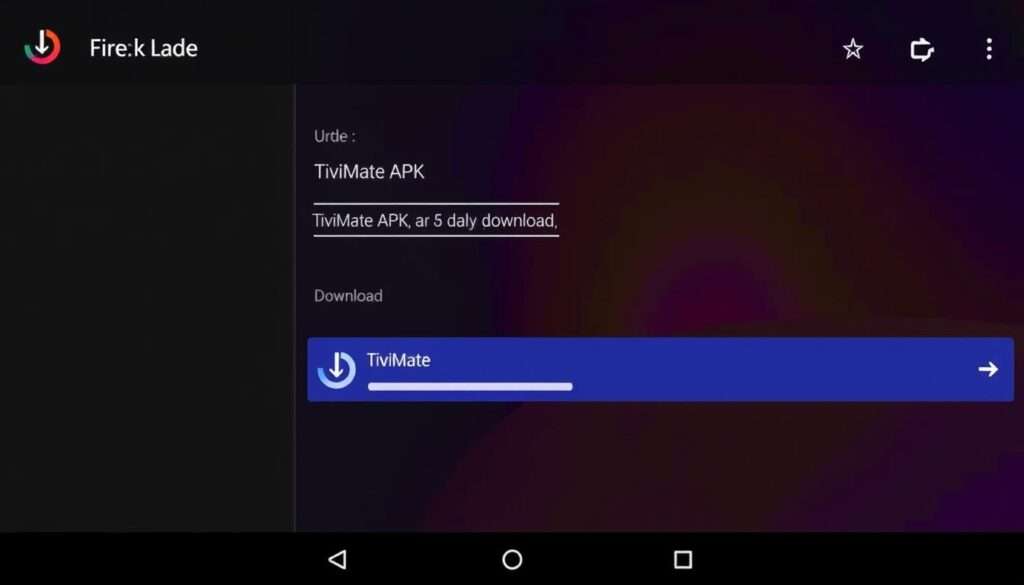
Installing TiviMate Player on FireStick
Now that we have the Downloader app ready, let’s proceed with installing TiviMate Player on your FireStick device.
Protect Your Streaming Privacy
When using third-party apps like TiviMate, your streaming activity may be visible to your ISP. Consider using a reliable VPN service to protect your privacy.
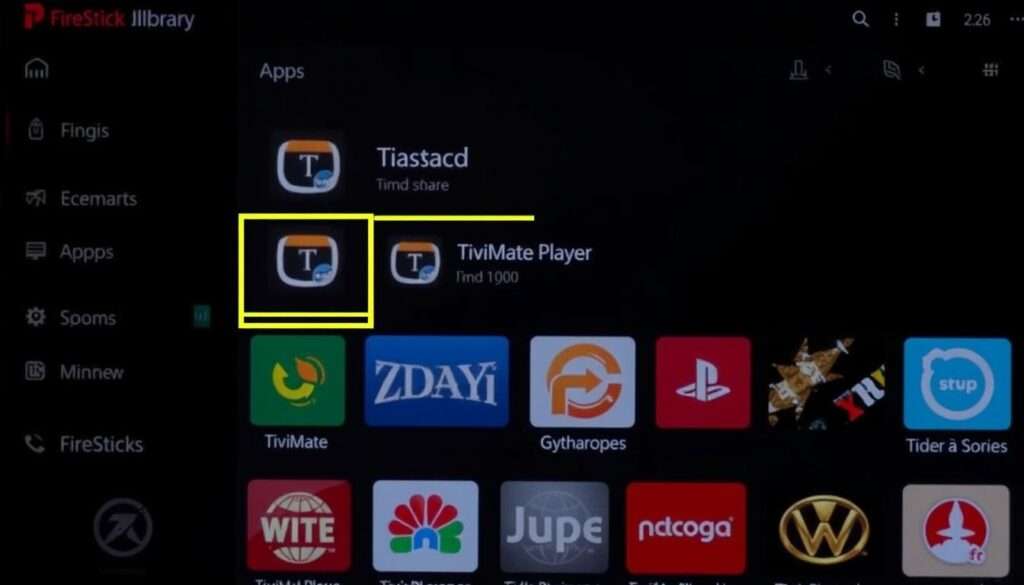
Accessing TiviMate on Your FireStick
After installation, you’ll need to know how to access TiviMate and add it to your home screen for easy access.
Setting Up OBO TV Integration with TiviMate
Now that TiviMate is installed, let’s configure it to work with your OBO TV subscription. This process involves adding your OBO TV playlist to TiviMate.
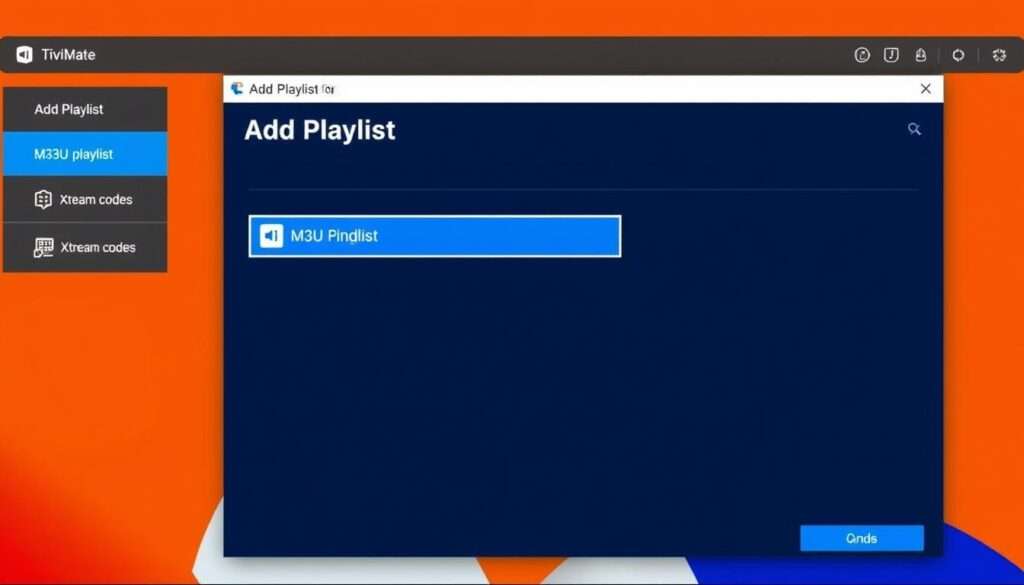
- M3U Playlist: If you have an M3U URL from OBO TV
- Xtream Codes: If you have Xtream Codes login credentials
- Stalker Portal: If OBO TV provides Stalker Portal access
- For M3U: Enter the complete M3U URL provided by OBO TV
- For Xtream Codes: Enter the server URL, username, and password
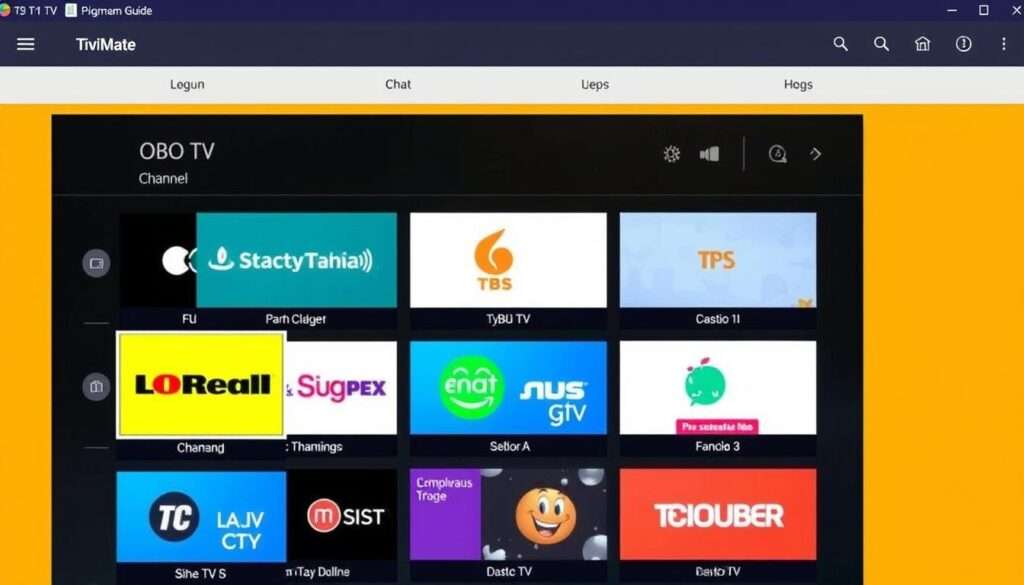
OBO TV Credentials: Make sure you have your active OBO TV subscription details ready. If you don’t have them, contact OBO TV customer support to obtain your M3U URL or Xtream Codes login information.
Unlocking TiviMate Premium Features
While the free version of TiviMate offers basic functionality, the premium version unlocks additional features that enhance your streaming experience. Here’s how to upgrade to TiviMate Premium.
Free Version Features
Premium Version Features
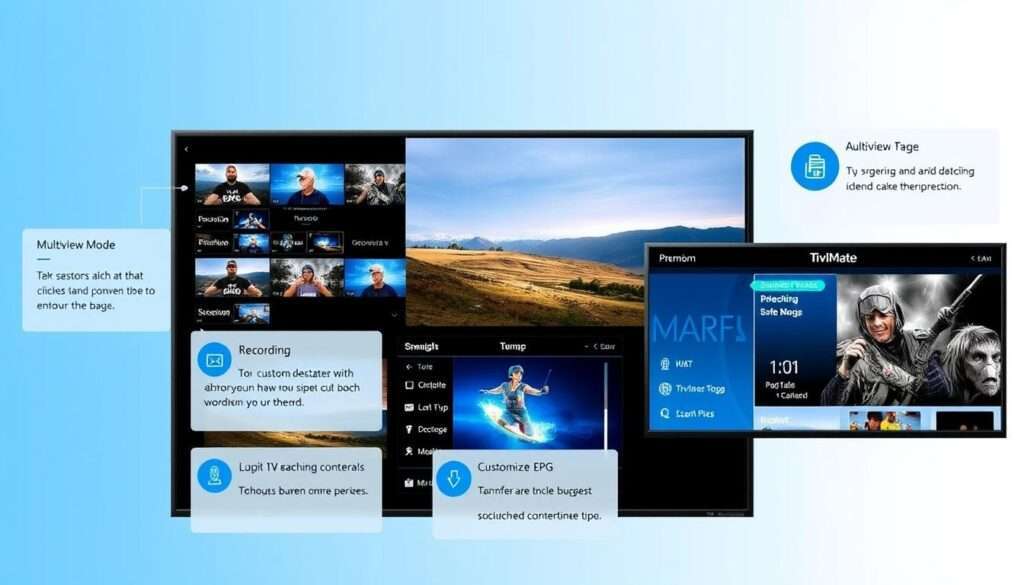
To upgrade to TiviMate Premium, you’ll need to purchase a subscription through the TiviMate Companion app, which is available on the Google Play Store. Since FireStick doesn’t have direct access to the Google Play Store, you’ll need to use an Android device or emulator to complete this process.
Get More from Your FireStick
Subscribe to our newsletter for exclusive tips on maximizing your FireStick experience, including premium app recommendations and hidden features.
Navigating TiviMate Player Efficiently
TiviMate offers a user-friendly interface designed specifically for remote control navigation. Here are some tips to help you navigate the app efficiently on your FireStick.
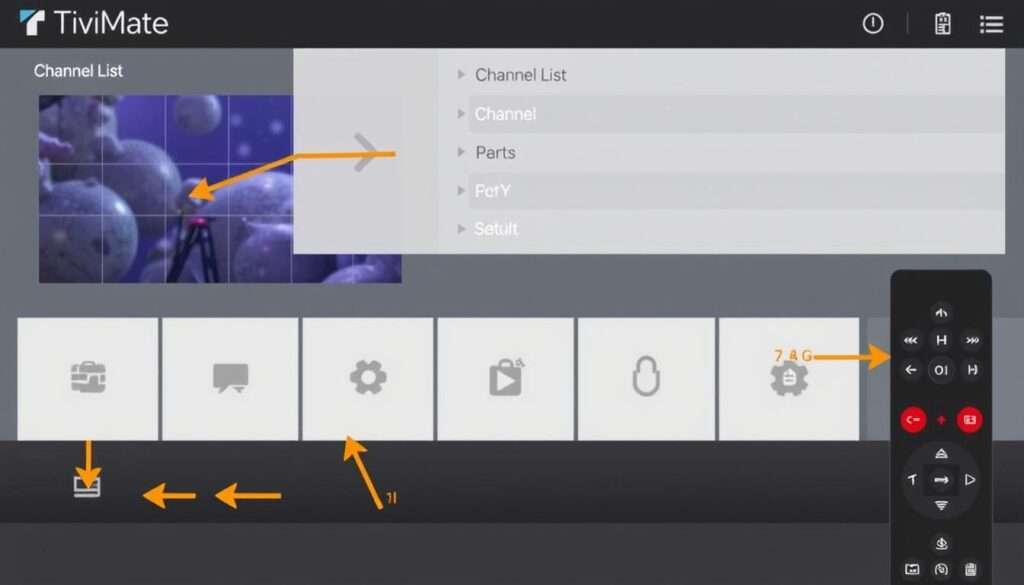
| Remote Button | Function in TiviMate |
| Select (Center) | Play selected channel / Open options menu during playback |
| Up/Down | Navigate through channels |
| Left/Right | Navigate through EPG timeline |
| Back | Return to previous screen / Exit playback |
| Menu (≡) | Open context menu for additional options |
| Play/Pause | Pause/Resume live TV (when supported) |
| Fast Forward | Skip forward in catchup content |
| Rewind | Skip backward in catchup content |
Pro Tip: Long-press the Select button while watching a channel to access quick settings like adding to favorites, enabling subtitles, or adjusting playback quality.
Customizing TiviMate for the Best Experience
TiviMate offers extensive customization options to tailor the app to your preferences. Here’s how to configure TiviMate for the optimal viewing experience with OBO TV.
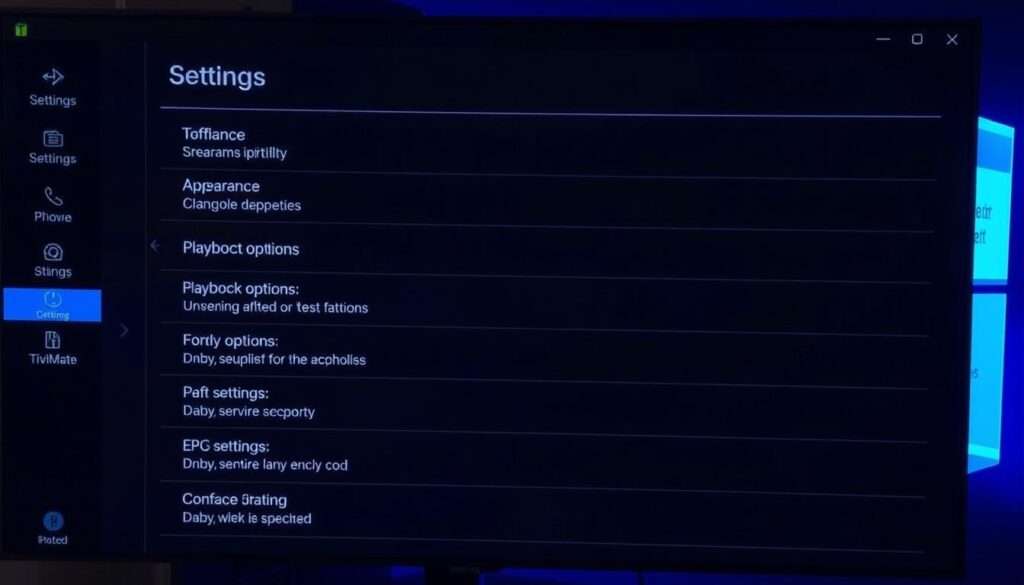
Appearance Settings
Playback Settings
Channel Organization
To access these settings, navigate to the Settings menu in TiviMate by pressing the Menu button on your remote while in the main interface, then selecting Settings. Take some time to explore each section and customize the app according to your preferences.
Troubleshooting Common TiviMate Issues
Even with a straightforward installation process, you might encounter some issues when setting up or using TiviMate with OBO TV. Here are solutions to common problems.
TiviMate won’t install or keeps crashing
Solution: Clear the cache of the Downloader app, restart your FireStick, and try reinstalling. Make sure you’re using the latest version of TiviMate compatible with FireStick 2026. If problems persist, try a factory reset of your FireStick as a last resort.
OBO TV playlist won’t load
Solution: Double-check your M3U URL or Xtream Codes credentials for typos. Verify your OBO TV subscription is active. Try disconnecting and reconnecting your VPN if you’re using one. As a test, try adding the playlist using a different input method.
Channels buffer or freeze frequently
Solution: Check your internet connection speed (minimum 10 Mbps recommended). Adjust buffer size in TiviMate settings under Playback. Try connecting your FireStick via Ethernet instead of Wi-Fi if possible. Consider using a VPN if your ISP is throttling streaming traffic.
EPG not loading or showing “No information”
Solution: Verify your EPG URL is correct. Force an EPG update in Settings > EPG > Update. Increase the EPG timeframe in settings. Some channels may not have EPG data available from OBO TV.
Remote control not navigating properly
Solution: Check remote batteries. Re-pair your remote with the FireStick. Update your FireStick system software. If using a third-party remote, make sure it’s compatible with FireStick 2026 models.
Need Additional Help?
If you’re still experiencing issues with TiviMate or OBO TV integration, our technical support team can help resolve your specific problems.
Legal and Safety Considerations
When using TiviMate Player and IPTV services like OBO TV, it’s important to understand the legal and safety implications.
Legal Disclaimer: This guide is provided for educational purposes only. TiviMate is a media player application that doesn’t provide any content itself. Users are responsible for ensuring that their use of TiviMate and any IPTV services complies with local laws and regulations. Always use official and properly licensed content sources.
Streaming Safety Tips
- Use a reputable VPN service to protect your privacy
- Only subscribe to legitimate IPTV services
- Keep your FireStick and apps updated
- Use strong, unique passwords for your accounts
- Monitor your device for unusual behavior
Practices to Avoid
- Using pirated or unauthorized content sources
- Sharing your subscription credentials
- Installing apps from unverified sources
- Ignoring software updates and security patches
- Connecting to public Wi-Fi without protection
Conclusion: Enjoying TiviMate with OBO TV
You’ve now successfully installed TiviMate Player on your FireStick 2026 device and integrated it with OBO TV. TiviMate offers one of the best IPTV player experiences available, with its intuitive interface, extensive customization options, and powerful features. As you explore the app, you’ll discover even more ways to enhance your streaming experience.
Remember to keep both your FireStick and TiviMate app updated to ensure you have access to the latest features and security improvements. With proper setup and configuration, TiviMate and OBO TV provide a premium streaming experience that rivals traditional cable TV at a fraction of the cost.
Stay Updated with FireStick News
Subscribe to our newsletter for the latest FireStick updates, app recommendations, and streaming tips. Be the first to know about new features and optimizations for TiviMate and OBO TV.
