
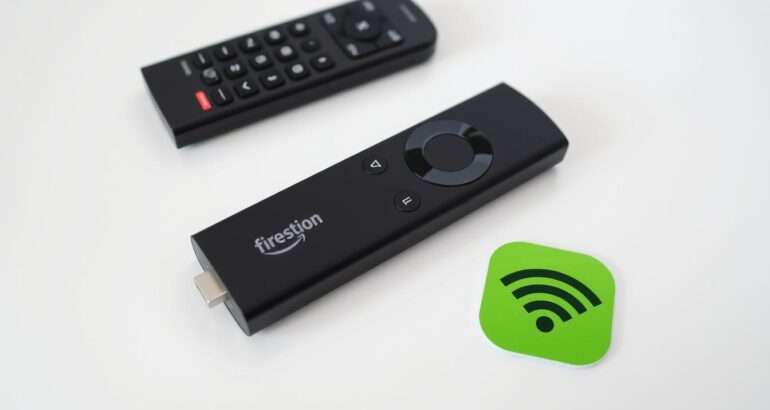
How to Install IPTV Smarters on FireStick 2026
Set up IPTV Smarters Pro on your FireStick and connect your OBO TV subscription with this complete, beginner-friendly guide.
Looking to set up IPTV Smarters on your FireStick device in 2026? This comprehensive guide walks you through the entire process of installing IPTV Smarters Pro and configuring it with your OBO TV subscription. IPTV Smarters remains one of the most popular IPTV players because it’s free, feature-rich, and works seamlessly with services like OBO TV. Follow our step-by-step instructions to start streaming your favorite content in minutes.
⚠️ IMPORTANT PRIVACY NOTICE
Your streaming activity can be monitored by your Internet Service Provider, app developers, and other third parties. To protect your privacy and prevent potential throttling, we strongly recommend using a reliable VPN service when streaming with IPTV Smarters.
Prerequisites for Installing IPTV Smarters
Before we begin the installation process, make sure you have the following:
- An Amazon FireStick device (any model, including FireStick Lite, FireStick 4K, or FireStick 4K Max)
- A stable internet connection (minimum 10 Mbps recommended for HD streaming)
- An active OBO TV subscription with login credentials
- Access to your FireStick remote control
- A few minutes of your time to complete the setup
Don’t Have an OBO TV Subscription Yet?
OBO TV offers premium channels, movies, and shows at affordable rates. Get started with a risk-free trial today!
Step 1: Enable Apps from Unknown Sources
Since IPTV Smarters Pro isn’t available in the Amazon App Store, we need to enable installation from unknown sources first:
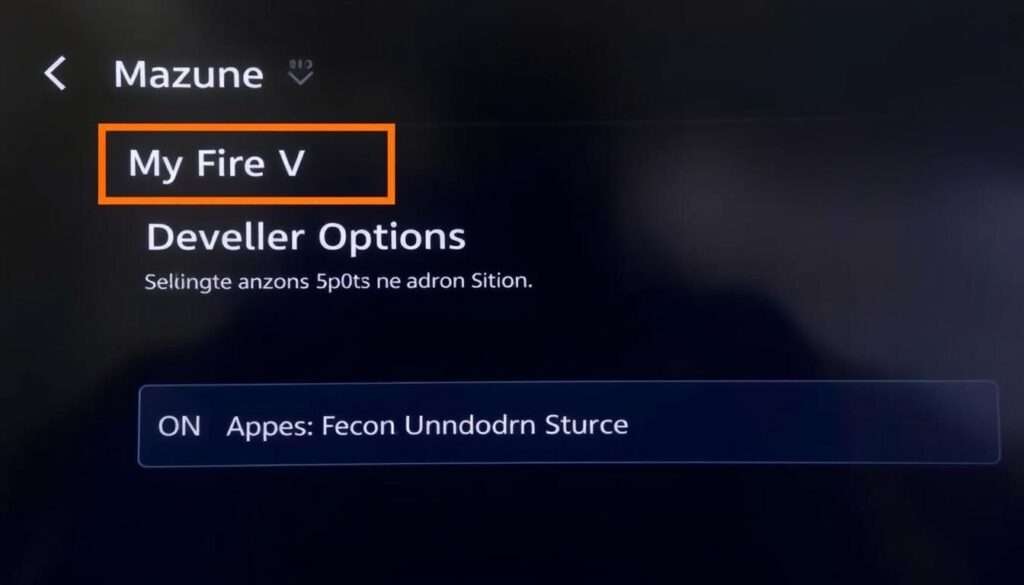
- From your FireStick Home screen, go to Settings (gear icon at the top)
- Select My Fire TV (or Device on older models)
- Choose Developer Options
- If you don’t see Developer Options, select About and click on the Fire TV Stick name 7 times until you see a message saying “You are now a developer”
- Toggle ON Apps from Unknown Sources or Install Unknown Apps (depending on your FireStick version)
- If prompted with a warning message, select Turn On to confirm
Step 2: Install the Downloader App
To download the IPTV Smarters APK file, we’ll use the Downloader app:
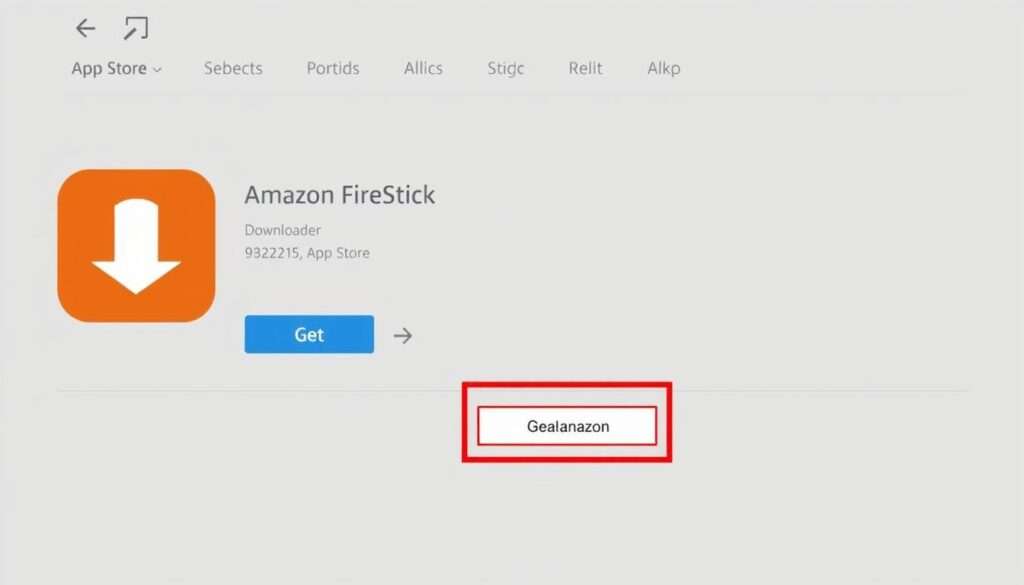
- Return to the FireStick Home screen
- Select the Search icon (magnifying glass)
- Type “Downloader” using the on-screen keyboard
- Select the Downloader app from the search results (it has an orange icon)
- Click Download or Get to install the app
- Once installed, click Open to launch Downloader
- If prompted for permissions, select Allow
Step 3: Download IPTV Smarters Pro APK
Now we’ll use the Downloader app to get the latest version of IPTV Smarters Pro:
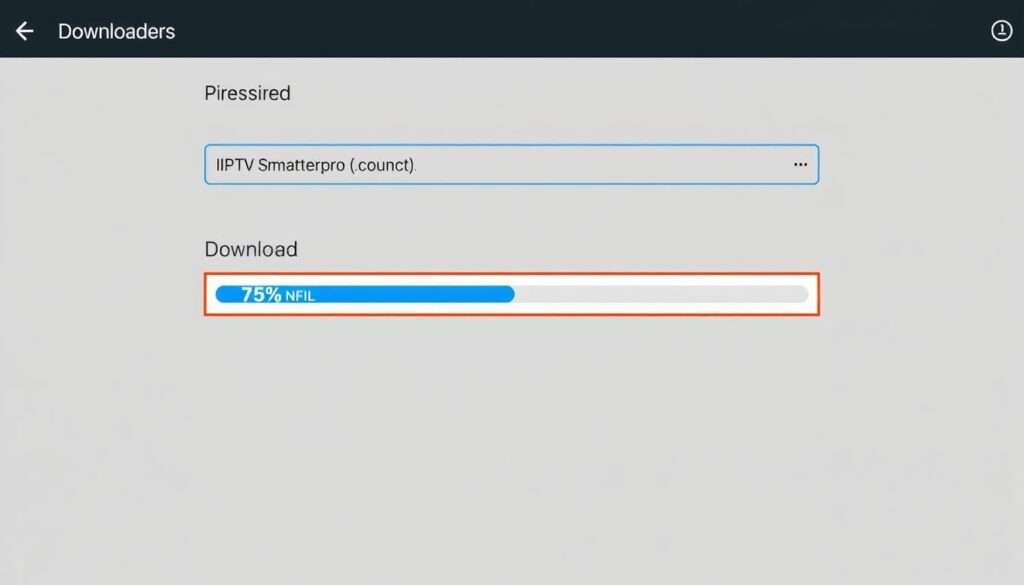
- In the Downloader app, ensure you’re on the Home tab
- Click on the URL field to activate the on-screen keyboard
- Enter the code 730116 or the URL bit.ly/fsh-downloads
- Click Go to proceed
- When the download page loads, scroll down to the IPTV & Media Player section
- Select IPTV Smarters Pro to start the download
- Wait for the download to complete (this may take a minute depending on your internet speed)
Note: The download code and URL provided above are current as of 2026. If you encounter any issues, visit the official IPTV Smarters website for the latest download link.
Step 4: Install IPTV Smarters Pro
Once the APK file is downloaded, follow these steps to install it:
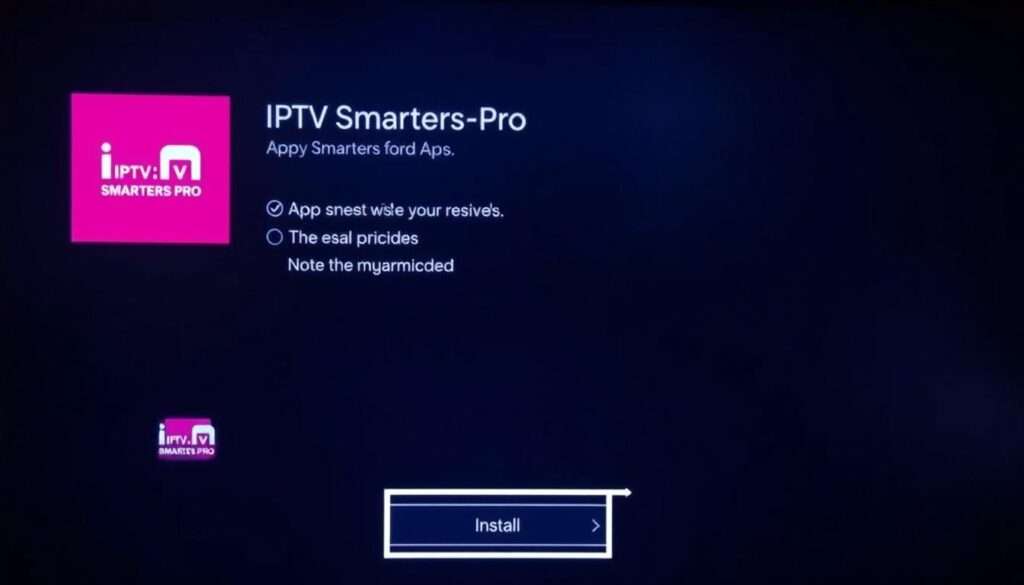
- When the download completes, the installer will launch automatically
- Select Install at the bottom right of the screen
- Wait for the installation to complete (usually takes 10-20 seconds)
- When finished, click Done instead of Open (we’ll clean up first)
- You’ll return to the Downloader app. Select Delete to remove the APK file and save storage space
- Confirm by selecting Delete again
Step 5: Launch and Configure IPTV Smarters
Now that IPTV Smarters Pro is installed, let’s launch and set it up:
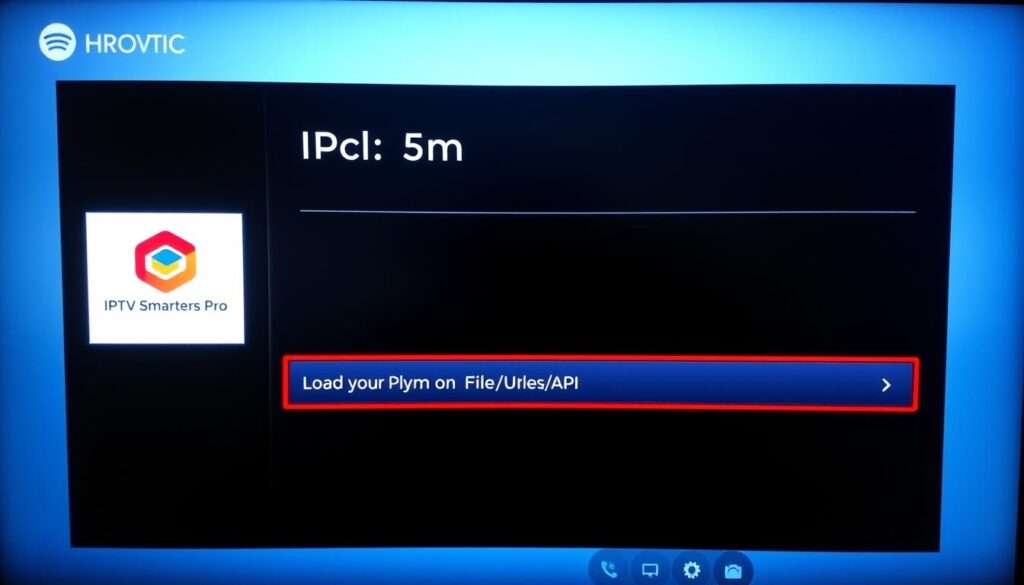
- Press and hold the Home button on your FireStick remote
- Select Apps from the menu that appears
- Find and select IPTV Smarters Pro from your app list
- On first launch, you’ll be asked to select a layout – choose TV for FireStick
- Read and accept the terms of service
- You’ll now see the main IPTV Smarters Pro interface
Step 6: Configure IPTV Smarters with OBO TV
Now it’s time to connect your OBO TV subscription to IPTV Smarters:
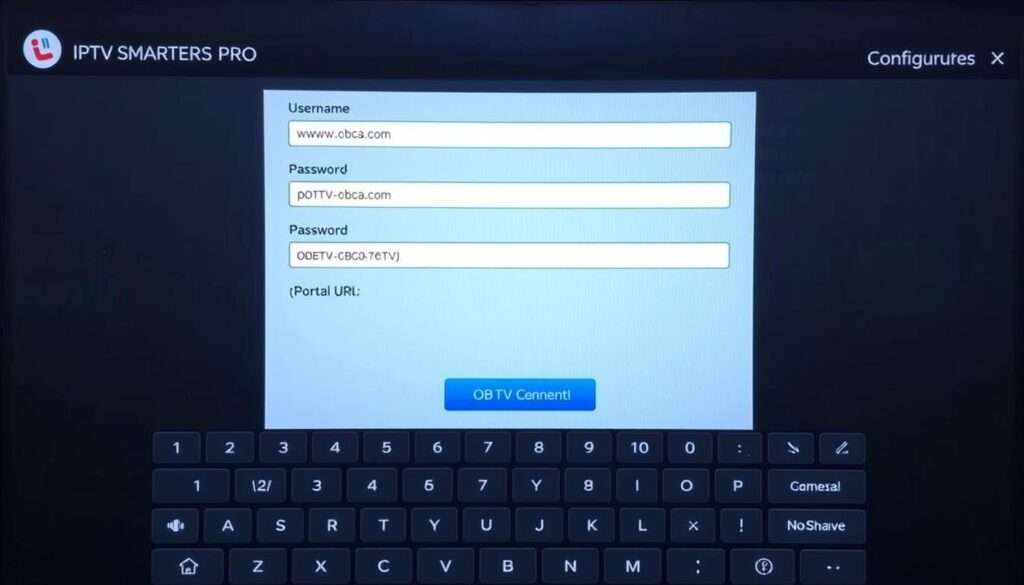
Using Xtream Codes API (Recommended Method)
- On the IPTV Smarters home screen, select Login with Xtream Codes API
- Enter the following information from your OBO TV subscription:
- Name: Enter any name you want (e.g., “OBO TV”)
- Username: Your OBO TV username
- Password: Your OBO TV password
- URL: The portal URL provided by OBO TV
- Click Add User to connect
- Wait for the app to verify your credentials and load your channels
Using M3U URL (Alternative Method)
- If you have an M3U URL instead of Xtream Codes, select Load Your Playlist or File/URL
- For Playlist Type, select M3U URL
- Enter a Playlist Name (e.g., “OBO TV”)
- In the File/URL field, enter the M3U URL provided by OBO TV
- Click Add User to connect
Protect Your Streaming Privacy
When using IPTV services, your viewing activity may be visible to your ISP. Protect your privacy with a trusted VPN service.
Step 7: Using IPTV Smarters with OBO TV
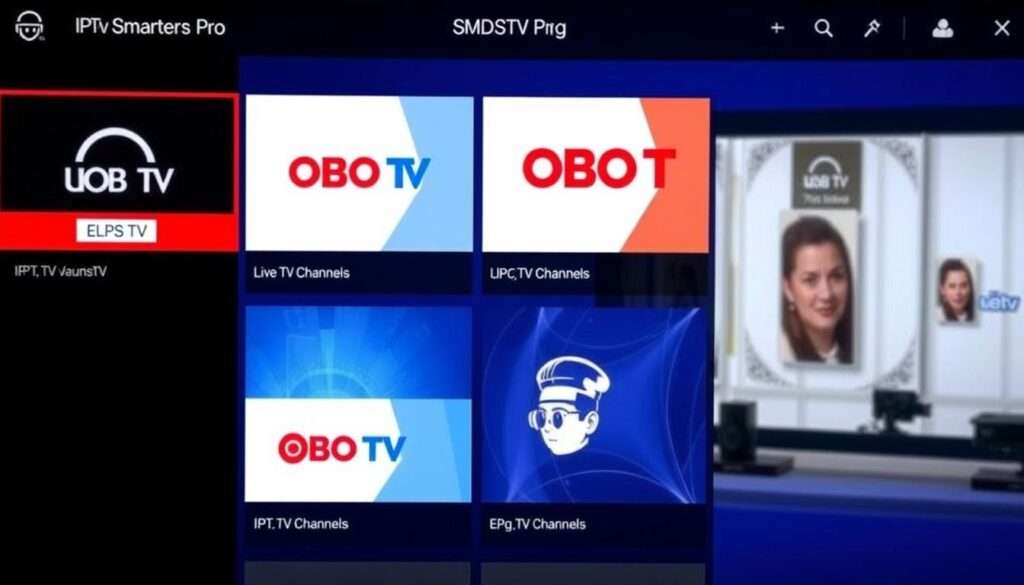
Once you’ve successfully connected your OBO TV subscription, you can start exploring and watching content:
- Live TV: Access all your live channels organized by categories
- Movies: Browse and watch on-demand movies
- Series: Watch TV series episodes
- Catch Up: Watch previously aired content (if supported by OBO TV)
- EPG: View the electronic program guide to see what’s playing
- Favorites: Add channels to favorites for quick access
- Multi-screen: Watch multiple channels simultaneously
To navigate between these sections, use the menu at the bottom of the screen. You can also access additional features through the settings menu.
Advanced Features of IPTV Smarters Pro
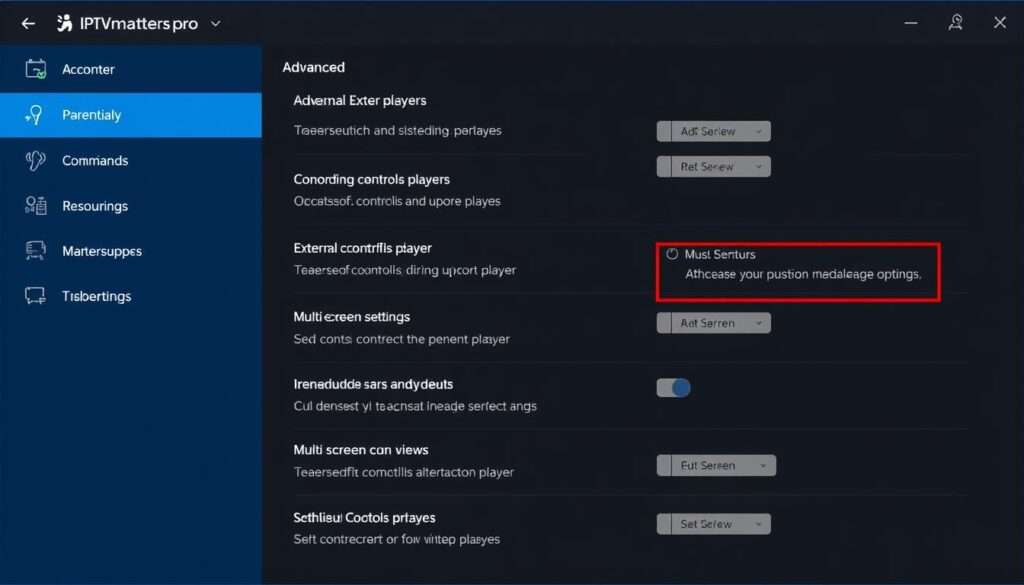
IPTV Smarters Pro offers several advanced features to enhance your viewing experience:
Recording Live TV
To record live TV content:
- While watching a channel, long-press the select button on your remote
- Choose Start Recording from the menu
- Select the recording duration
- Access recordings later from the Recordings section
Parental Controls
To set up parental controls:
- Go to Settings in the main menu
- Select Parental Controls
- Create a PIN code
- Choose which content categories to restrict
External Video Players
To use external players like VLC or MX Player:
- First, install your preferred player on FireStick
- In IPTV Smarters, go to Settings
- Select External Players
- Click Add Player and choose your player
- Select which content types should use the external player
Multiple Playlists
To add multiple IPTV subscriptions:
- From the home screen, select Switch User
- Choose Add User
- Enter the credentials for your additional service
- Switch between services using the Switch User option
Troubleshooting Common Issues
Common Issues
- Buffering Issues: Try lowering video quality in settings or check your internet speed
- Login Errors: Verify your OBO TV credentials are correct and subscription is active
- Channels Not Loading: Check your internet connection or try restarting the app
- App Crashing: Clear cache or reinstall the application
- EPG Not Showing: Verify that OBO TV provides EPG data or manually add an EPG URL
Quick Fixes
- Clear Cache: Go to Settings > General Settings > Clear Cache
- Force Stop: Go to FireStick Settings > Applications > Manage Installed Applications > IPTV Smarters > Force Stop
- Update App: Check if a newer version is available and reinstall
- Try External Player: Configure an external player like VLC for better performance
- Restart Device: Sometimes a simple restart of your FireStick resolves issues
Experiencing Persistent Issues?
OBO TV offers 24/7 technical support to help resolve any streaming problems you might encounter.
Frequently Asked Questions
Is IPTV Smarters Pro legal to use?
Yes, IPTV Smarters Pro itself is completely legal. It’s simply a media player application that allows you to access content from various sources. However, the legality depends on the content you access through it. Always ensure you’re using legitimate services like OBO TV that have proper licensing agreements for the content they provide.
Does IPTV Smarters work on FireStick 4K and FireStick 4K Max?
Yes, IPTV Smarters Pro works perfectly on all FireStick models, including FireStick 4K, FireStick 4K Max, FireStick Lite, and the standard FireStick. The installation process is identical across all models.
Do I need to pay for IPTV Smarters Pro?
No, IPTV Smarters Pro is completely free to download and use. However, you will need a subscription to a service like OBO TV to access content through the app.
Can I use IPTV Smarters on multiple devices with one OBO TV subscription?
You can install IPTV Smarters on as many devices as you like. By default, an OBO TV subscription streams on one device at a time — to watch on more than one screen simultaneously, ask OBO TV support about adding an extra connection to your plan.
How often should I update IPTV Smarters Pro?
It’s recommended to check for updates every few months. The current version as of 2026 is 3.1.5.1. You can update by following the same installation process outlined in this guide to get the latest version.
Conclusion
Installing IPTV Smarters Pro on your FireStick and configuring it with OBO TV gives you access to a world of entertainment. The app’s user-friendly interface and powerful features make it one of the best IPTV players available in 2026. By following this guide, you’ve learned how to set up and optimize your streaming experience.
Remember that while streaming content, it’s important to protect your privacy and security with a reliable VPN service. This will encrypt your connection and prevent your ISP from monitoring your streaming activities.
For the best experience with OBO TV and IPTV Smarters Pro, make sure to keep both your FireStick and the app updated to the latest versions.
Complete Your Streaming Setup Today
Get the full OBO TV experience with premium channels and secure, private streaming.
